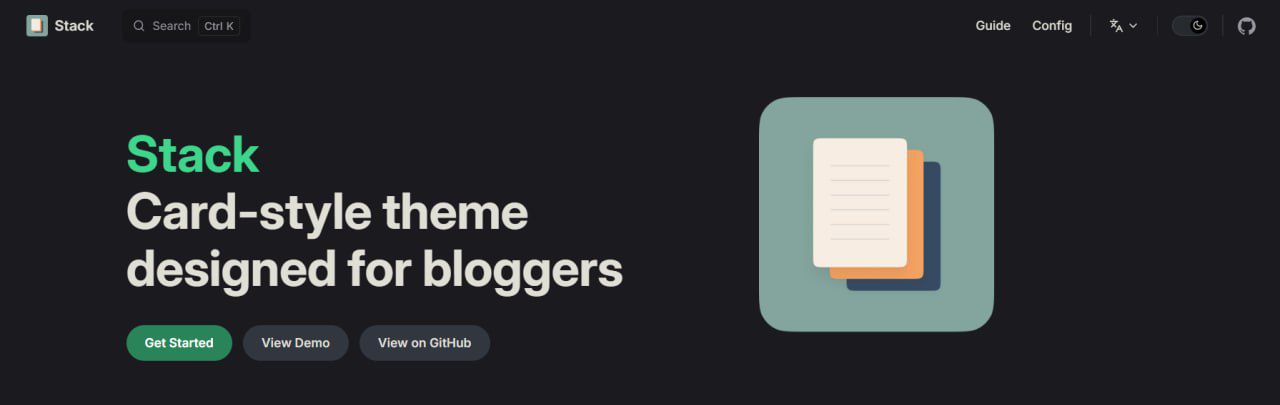
- Hugo Stack คือธีม card-style สำหรับ blogger รองรับ Dark Mode, Responsive, Multilingual, และ Local Search
- ติดตั้งด้วย Git Submodule หรือ Hugo Modules — อัพเดทธีมง่ายโดยไม่กระทบเนื้อหา
- ฟีเจอร์เด่น: TOC Widget, Related Posts, Reading Time, Series Navigation, PhotoSwipe Gallery
📚 คู่มือ Hugo Stack Theme ฉบับสมบูรณ์
อัพเดท: 2026-04-10
เวอร์ชัน: Hugo Stack v4
Hugo: 0.160.0+ extended (April 2026)
📋 สารบัญ
- ข้อมูลเบื้องต้น
- การติดตั้ง
- การใช้ธีม Stack 🆕
- การตั้งค่า (Configuration)
- การเขียนบทความ
- Widgets
- Menu
- ฟีเจอร์พิเศษ
- การปรับแต่งขั้นสูง
- Troubleshooting 🆕
- Deployment 🆕
- Performance Optimization 🆕
- SEO & Analytics 🆕
📖 ข้อมูลเบื้องต้น
Hugo Stack คืออะไร?
Hugo Stack คือธีมสำหรับ Hugo แบบ card-style ที่ออกแบบมาสำหรับ blogger โดยเฉพาะ
ฟีเจอร์หลัก:
| ฟีเจอร์ | คำอธิบาย |
|---|---|
| 🌙 Dark Mode | โหมดมืดอัตโนมัติตามระบบ |
| 📱 Responsive | รองรับทุกอุปกรณ์ |
| 🌐 Multilingual | รองรับหลายภาษา |
| 🔍 Local Search | ค้นหาในเว็บ |
| 📑 Table of Contents | สารบัญบทความ |
| 🖼️ Image Gallery | แกลเลอรี่รูปภาพ |
| ⚡ Fast | เร็วและเบา (ไม่มี framework) |
🎨 การใช้ธีม Stack
1. โครงสร้างโฟลเดอร์
 1my-blog/
 2├── assets/              # ไฟล์ต้นฉบับ (SCSS, JS)
 3│   ├── img/            # รูปภาพ
 4│   │   └── profile.jpg # รูปโปรไฟล์
 5│   └── scss/
 6│       └── custom.scss # CSS ส่วนตัว
 7├── content/            # เนื้อหาบทความ
 8│   ├── posts/         # บทความ
 9│   └── _index.md      # หน้าแรก
10├── layouts/           # Template ส่วนตัว (override theme)
11├── static/            # ไฟล์ static (ไม่ผ่าน Hugo processing)
12├── themes/            # Theme files
13│   └── hugo-theme-stack/
14└── hugo.toml         # Config หลัก
2. การปรับแต่งสี (Color Customization)
วิธีที่ 1: ใช้ Custom CSS (แนะนำ)
สร้างไฟล์: assets/scss/custom.scss
 1// เปลี่ยนสีหลัก (Accent Color)
 2:root {
 3  --accent-color: #007bff;        // สีลิงก์, ปุ่ม
 4  --accent-color-darker: #0056b3; // สีเมื่อ hover
 5}
 6
 7// เปลี่ยนสีพื้นหลัง Dark Mode
 8:root[data-scheme="dark"] {
 9  --body-background: #1a1a1a;
10  --card-background: #2d2d2d;
11}
12
13// เปลี่ยนสีพื้นหลัง Light Mode
14:root[data-scheme="light"] {
15  --body-background: #f5f5f5;
16  --card-background: #ffffff;
17}
วิธีที่ 2: แก้ใน Config
1[params]
2  defaultTheme = "dark"  # light, dark, auto
3. การเพิ่ม Font (Custom Fonts)
วิธีที่ 1: ใช้ Google Fonts
- เพิ่มใน
hugo.toml:
1[[params.headCustomHTML]]
2  html = """<link rel="preconnect" href="https://fonts.googleapis.com">
3<link rel="preconnect" href="https://fonts.gstatic.com" crossorigin>
4<link href="https://fonts.googleapis.com/css2?family=Noto+Sans+Thai:wght@300;400;500;600;700&display=swap" rel="stylesheet">"""
- ใช้ใน
assets/scss/custom.scss:
1body {
2  font-family: 'Noto Sans Thai', sans-serif;
3}
4
5h1, h2, h3, h4, h5, h6 {
6  font-family: 'Noto Sans Thai', sans-serif;
7}
วิธีที่ 2: ใช้ Font ในเครื่อง
- วางไฟล์ font ใน
static/fonts/ - เพิ่มใน
assets/scss/custom.scss:
 1@font-face {
 2  font-family: 'My Font';
 3  src: url('/fonts/my-font.woff2') format('woff2');
 4  font-weight: normal;
 5  font-style: normal;
 6}
 7
 8body {
 9  font-family: 'My Font', sans-serif;
10}
4. การปรับ Layout
Sidebar Compact Mode:
1[params.sidebar]
2  compact = true  # true = โหมดเล็ก, false = โหมดปกติ
เปลี่ยนตำแหน่ง Widgets:
 1# Widgets ในหน้าแรก
 2[[params.widgets.homepage]]
 3  type = "search"
 4
 5[[params.widgets.homepage]]
 6  type = "categories"
 7
 8# Widgets ในหน้าบทความ
 9[[params.widgets.page]]
10  type = "toc"  # สารบัญ
ซ่อน Widgets:
1# ลบ widgets ออกทั้งหมด
2[[params.widgets.homepage]]
3  type = "disabled"
5. การปรับ Avatar และ Emoji
เปลี่ยนรูปโปรไฟล์:
1[params.sidebar]
2  avatar = "img/profile.jpg"  # วางรูปใน assets/img/
เปลี่ยน Emoji:
1[params.sidebar]
2  emoji = "👋"  # หรือ 🤖, 🎨, 📝, etc.
เพิ่ม Subtitle:
1[params.sidebar]
2  subtitle = "คำอธิบายสั้นๆ เกี่ยวกับบล็อก"
6. การปรับ Article Layout
เปิด/ปิดฟีเจอร์:
1[params.article]
2  toc = true              # เปิด/ปิดสารบัญ
3  readingTime = true      # เปิด/ปิดเวลาอ่าน
4  headingAnchor = true    # เปิด/ปิด # ข้างหัวข้อ
5  math = false            # เปิด/ปิด KaTeX
6
7  [params.article.license]
8    enabled = true        # เปิด/ปิด License
9    default = "CC BY-NC 4.0"
Mermaid Diagrams:
1[params.article.mermaid]
2  look = "classic"        # classic หรือ handDrawn
3  lightTheme = "default"  # ธีม light mode
4  darkTheme = "dark"      # ธีม dark mode
5  securityLevel = "strict"
7. การปรับ Image Processing
Lazy Loading (enabled by умолчанию):
 1[params.imageProcessing]
 2  lazyLoading = true      # โหลดรูปเมื่อเลื่อนถึง
 3  enableWebP = true       # แปลงรูปเป็น WebP
 4
 5  [params.imageProcessing.thumbnail]
 6    enabled = true        # สร้าง thumbnail
 7
 8  [params.imageProcessing.content]
 9    enabled = true        # Responsive images
10    widths = [400, 800, 1200, 1600]  # ขนาดที่จะสร้าง
คุณภาพรูป:
1[imaging]
2  quality = 80            # 0-100 (แนะนำ 75-85)
3  resampleFilter = "lanczos"  # lanczos, catmullrom, linear
4  anchor = "smart"        # smart, center, topLeft, etc.
8. ตัวอย่างการตั้งค่าแบบเต็ม
 1baseURL = "https://example.com/"
 2title = "บล็อกของฉัน"
 3theme = "hugo-theme-stack"
 4languageCode = "th-th"
 5
 6[params]
 7  description = "บล็อกส่วนตัว"
 8  defaultTheme = "auto"
 9  mainSections = ["posts"]
10
11  [params.sidebar]
12    compact = false
13    emoji = "👋"
14    subtitle = "แบ่งปันความรู้และเทคโนโลยี"
15    avatar = "img/profile.jpg"
16
17  [params.article]
18    toc = true
19    readingTime = true
20    headingAnchor = true
21    math = false
22
23    [params.article.license]
24      enabled = true
25      default = "CC BY-NC 4.0"
26
27  [params.imageProcessing]
28    lazyLoading = true
29    enableWebP = true
30
31[menu]
32  [[menu.main]]
33    name = "Home"
34    url = "/"
35    weight = 1
36    [menu.main.params]
37      icon = "home"
38
39  [[menu.social]]
40    name = "GitHub"
41    url = "https://github.com/username"
42    weight = 1
43    [menu.social.params]
44      icon = "github"
🚀 การติดตั้ง
วิธีที่ 1: ใช้ Starter Template (แนะนำ)
1git clone https://github.com/CaiJimmy/hugo-theme-stack-starter my-blog
2cd my-blog
3hugo server
วิธีที่ 2: Hugo Module
 1# Initialize module
 2hugo mod init github.com/me/my-blog
 3
 4# Add theme to config
 5# hugo.toml
 6[[module.imports]]
 7  path = "github.com/CaiJimmy/hugo-theme-stack/v4"
 8
 9# Update theme
10hugo mod get -u github.com/CaiJimmy/hugo-theme-stack/v4
11hugo mod tidy
วิธีที่ 3: Git Submodule
1git submodule add https://github.com/CaiJimmy/hugo-theme-stack/ themes/hugo-theme-stack
⚙️ การตั้งค่า (Configuration)
1. Sidebar (แถบด้านข้าง)
1[params.sidebar]
2  compact = false          # โหมด compact
3  emoji = "👋"             # Emoji ด้านบน
4  subtitle = "คำอธิบายสั้นๆ"
5  avatar = "img/profile.jpg"  # รูปโปรไฟล์ (ต้องอยู่ใน assets/img/)
ตำแหน่งรูปโปรไฟล์:
1assets/
2└── img/
3    └── profile.jpg  ← วางรูปที่นี่
2. Article (บทความ)
1[params.article]
2  headingAnchor = false    # แสดง # ข้างหัวข้อ
3  math = false             # เปิดใช้ KaTeX (สมการคณิตศาสตร์)
4  toc = true               # แสดงสารบัญ
5  readingTime = true       # แสดงเวลาอ่าน
6
7  [params.article.license]
8    enabled = true
9    default = "CC BY-NC 4.0"
Mermaid Diagrams:
1[params.article.mermaid]
2  look = "classic"         # classic หรือ handDrawn
3  lightTheme = "default"   # ธีมสำหรับ light mode
4  darkTheme = "dark"       # ธีมสำหรับ dark mode (สลับธีมอัตโนมัติ)
5  securityLevel = "strict"
3. Widgets (วิดเจ็ตด้านขวา)
 1[[params.widgets.homepage]]
 2  type = "search"
 3
 4[[params.widgets.homepage]]
 5  type = "archives"
 6  [params.widgets.homepage.params]
 7    limit = 10
 8
 9[[params.widgets.homepage]]
10  type = "categories"
11  [params.widgets.homepage.params]
12    limit = 10
13
14[[params.widgets.homepage]]
15  type = "tag-cloud"
16  [params.widgets.homepage.params]
17    limit = 10
Widgets ที่มี:
| Widget | คำอธิบาย | Params |
|---|---|---|
search | ช่องค้นหา | - |
archives | รายการปี | limit |
categories | หมวดหมู่ | limit |
toc | สารบัญ | - |
tag-cloud | แท็ก | limit |
taxonomy | taxonomy กำหนดเอง | taxonomy, limit, icon |
4. Menu (เมนู)
วิธีที่ 1: เพิ่มใน Front Matter (แนะนำ)
1---
2title: "บทความ"
3menu:
4  main:
5    name: "บทความ"
6    weight: -90
7    params:
8      icon: "article"
9---
วิธีที่ 2: เพิ่มใน Config
 1[[menu.main]]
 2  name = "Home"
 3  url = "/"
 4  weight = 1
 5  identifier = "home"
 6  [menu.main.params]
 7    icon = "home"
 8    newTab = false
 9
10[[menu.main]]
11  name = "Posts"
12  url = "/posts/"
13  weight = 2
14  identifier = "posts"
15  [menu.main.params]
16    icon = "archive"
Social Menu:
1[[menu.social]]
2  name = "GitHub"
3  url = "https://github.com/yourusername"
4  weight = 1
5  [menu.social.params]
6    icon = "github"
7    newTab = true
✍️ การเขียนบทความ
โครงสร้างไฟล์ (Page Bundles)
1content/
2└── posts/
3    └── my-first-post/
4        ├── index.md       ← เนื้อหา
5        ├── image1.png     ← รูป
6        └── image2.png
Front Matter
 1---
 2title: "ชื่อบทความ"
 3date: 2026-04-06T19:00:00+07:00
 4draft: false
 5tags: ["tag1", "tag2"]
 6categories: ["Category"]
 7image: "image1.png"  # รูปปก
 8description: "คำอธิบายสั้นๆ"
 9slug: "my-first-post"
10toc: true            # เปิด/ปิดสารบัญ
11math: true           # เปิด/ปิด KaTeX
12license: "CC BY-NC"  # License (override)
13---
การใส่รูป
1
2
3
Image Gallery:
1 
2
จะแสดงเป็น 2 แถว (2 รูปบน, 1 รูปล่าง)
🎨 ฟีเจอร์พิเศษ
1. Dark Mode
- เปิด/ปิดอัตโนมัติตามระบบ
- หรือคลิกปุ่ม Dark Mode ใน sidebar
2. Local Search
ต้องสร้างหน้า Search ก่อน:
1hugo new search/_index.md
Front Matter:
1---
2title: "Search"
3layout: "search"
4---
3. Archives
1hugo new archives/_index.md
Front Matter:
1---
2title: "Archives"
3layout: "archives"
4---
4. Math Typesetting (KaTeX)
เปิดใน config:
1[params.article]
2  math = true
หรือเปิดในบทความ:
1---
2math: true
3---
ใช้:
1Inline: $E = mc^2$
2
3Block:
4$$
5E = mc^2
6$$
5. Mermaid Diagrams
เปิดใน config:
1[params.article.mermaid]
2  enabled = true
ใช้:
🔧 การปรับแต่งขั้นสูง
1. Custom CSS
สร้างไฟล์: assets/scss/custom.scss
1// ตัวอย่าง: เปลี่ยนสี accent
2:root {
3  --accent-color: #your-color;
4}
5
6// เปลี่ยนฟอนต์
7body {
8  font-family: 'Your Font', sans-serif;
9}
2. Custom Icons
ดาวน์โหลด SVG จาก Tabler Icons
วางที่: assets/icons/your-icon.svg
ใช้:
1[menu.main.params]
2  icon = "your-icon"
3. Override Theme Files
คัดลอกไฟล์จาก theme มาที่โปรเจกต์:
1themes/hugo-theme-stack/layouts/_partials/header.html
2→
3layouts/_partials/header.html
แก้ไขไฟล์ใน layouts/ จะ override theme
4. Multilingual
 1[languages]
 2  [languages.en]
 3    languageName = "English"
 4    title = "My Blog"
 5    weight = 1
 6
 7  [languages.th]
 8    languageName = "ไทย"
 9    title = "บล็อกของฉัน"
10    weight = 2
📊 สรุปการตั้งค่าที่สำคัญ
hugo.toml (ตัวอย่างเต็ม)
 1baseURL = "https://example.com/"
 2title = "บล็อกของฉัน"
 3theme = "hugo-theme-stack"
 4languageCode = "th-th"
 5
 6[params]
 7  description = "บล็อกส่วนตัว"
 8  defaultTheme = "auto"
 9  mainSections = ["posts"]
10
11  [params.sidebar]
12    emoji = "👋"
13    subtitle = "คำอธิบาย"
14    avatar = "img/profile.jpg"
15
16  [params.article]
17    toc = true
18    readingTime = true
19
20    [params.article.license]
21      enabled = true
22      default = "CC BY-NC 4.0"
23
24  [params.widgets.homepage]
25    - type = "search"
26    - type = "archives"
27    - type = "categories"
28    - type = "tag-cloud"
29
30[menu]
31  [[menu.main]]
32    name = "Home"
33    url = "/"
34    weight = 1
35    [menu.main.params]
36      icon = "home"
37
38  [[menu.social]]
39    name = "GitHub"
40    url = "https://github.com/username"
41    weight = 1
42    [menu.social.params]
43      icon = "github"
44
45[languages]
46  [languages.th]
47    languageName = "ไทย"
48    weight = 1
🔗 ลิงก์ที่เป็นประโยชน์
| แหล่ง | ลิงก์ |
|---|---|
| Official Docs | https://stack.cai.im/ |
| GitHub Repo | https://github.com/CaiJimmy/hugo-theme-stack |
| Demo | https://demo.stack.cai.im/ |
| Starter Template | https://github.com/CaiJimmy/hugo-theme-stack-starter |
| Tabler Icons | https://tabler-icons.io |
⚠️ Troubleshooting
ปัญหาที่พบบ่อยและวิธีแก้
1. รูปไม่แสดง
ปัญหา: รูปปกหรือรูปในบทความไม่แสดง
วิธีแก้:
1# ตรวจสอบว่ารูปอยู่ในโฟลเดอร์ที่ถูกต้อง
2content/posts/my-post/
3├── index.md
4└── cover.jpg  ← ต้องอยู่ในโฟลเดอร์เดียวกัน
5
6# ตรวจสอบ Front Matter
7title = "My Post"
8image = "cover.jpg"  ← ต้องตรงกับชื่อไฟล์
2. Dark Mode ไม่ทำงาน
ปัญหา: ปุ่ม Dark Mode ไม่เปลี่ยนสี
วิธีแก้:
1# ตรวจสอบใน hugo.toml
2[params]
3  defaultTheme = "auto"  # หรือ "light", "dark"
3. Search ไม่ทำงาน
ปัญหา: กดค้นหาแล้วไม่มีผลลัพธ์
วิธีแก้:
1# สร้างหน้า Search ให้ถูกต้อง
2hugo new search/_index.md
3
4# ตรวจสอบ Front Matter
5---
6title: "Search"
7layout: "search"
8---
4. Menu ไม่ Highlight
ปัญหา: เมนูไม่ highlight เมื่ออยู่ในหน้านั้น
วิธีแก้:
1# ใช้ Front Matter menu แทน config
2---
3menu:
4  main:
5    name: "Posts"
6    weight: -90
7---
5. Build ล้มเหลว
ปัญหา: hugo server error
วิธีแก้:
 1# ตรวจสอบ Hugo version
 2hugo version
 3
 4# ต้องเป็น 0.160.0+ extended
 5# ถ้าไม่ใช่ ให้ติดตั้งใหม่
 6# https://gohugo.io/installation/
 7
 8# Clear cache
 9hugo mod clean
10rm -rf public/
11hugo server --gc
6. CSS ส่วนตัวไม่ทำงาน
ปัญหา: แก้ custom.scss แล้วไม่เปลี่ยน
วิธีแก้:
1# ตรวจสอบตำแหน่งไฟล์
2assets/scss/custom.scss  ← ต้องอยู่ที่นี้
3
4# Clear cache และ rebuild
5rm -rf public/
6hugo server --gc --minify
🚀 Deployment
1. GitHub Pages (แนะนำ)
วิธีที่ 1: ใช้ GitHub Actions (ง่ายสุด)
- สร้างไฟล์
.github/workflows/hugo.yml:
 1name: Deploy to GitHub Pages
 2
 3on:
 4  push:
 5    branches: [main]
 6  workflow_dispatch:
 7permissions:
 8  contents: read
 9  pages: write
10  id-token: write
11
12jobs:
13  build:
14    runs-on: ubuntu-latest
15    steps:
16      - uses: actions/checkout@v4
17        with:
18          submodules: recursive
19
20      - name: Setup Hugo
21        uses: peaceiris/actions-hugo@v3
22        with:
23          hugo-version: '0.160.0'
24          extended: true
25
26      - name: Build
27        run: hugo --gc --minify
28
29      - name: Upload artifact
30        uses: actions/upload-pages-artifact@v3
31        with:
32          path: ./public
33
34  deploy:
35    environment:
36      name: github-pages
37      url: ${{ steps.deployment.outputs.page_url }}
38    runs-on: ubuntu-latest
39    needs: build
40    steps:
41      - name: Deploy to GitHub Pages
42        id: deployment
43        uses: actions/deploy-pages@v4
- Push ขึ้น GitHub:
1git add .
2git commit -m "Add GitHub Actions"
3git push
- เปิด Settings → Pages → เลือก Source: GitHub Actions
วิธีที่ 2: ใช้ hugo-deploy
1# ติดตั้ง hugo-deploy
2go install github.com/gohugoio/hugo-deploy@latest
3
4# Deploy
5hugo-deploy --repo https://github.com/username/username.github.io
2. Netlify
วิธีที่ 1: เชื่อมต่อกับ GitHub
- เข้า https://netlify.com
- คลิก “Add new site” → “Import an existing project”
- เลือก GitHub repo
- ตั้งค่า:
- Build command:
hugo --gc --minify - Publish directory:
public - Hugo version:
0.160.0
- Build command:
วิธีที่ 2: ใช้ netlify.toml
สร้างไฟล์ netlify.toml:
 1[build]
 2  command = "hugo --gc --minify"
 3  publish = "public"
 4
 5[build.environment]
 6  HUGO_VERSION = "0.160.0"
 7  HUGO_ENV = "production"
 8  HUGO_ENABLEGITINFO = "true"
 9
10[[redirects]]
11  from = "/index.xml"
12  to = "/rss.xml"
13  status = 301
3. Vercel
- เข้า https://vercel.com
- คลิก “Add New” → “Project”
- เลือก GitHub repo
- ตั้งค่า:
- Framework Preset: Hugo
- Build Command:
hugo --gc --minify - Output Directory:
public - Hugo Version:
0.160.0
⚡ Performance Optimization
1. Image Optimization
เปิดใน config:
 1[params.imageProcessing]
 2  lazyLoading = true      # โหลดรูปเมื่อเลื่อนถึง
 3  enableWebP = true       # แปลงรูปเป็น WebP (ลดขนาด 30-50%)
 4
 5  [params.imageProcessing.thumbnail]
 6    enabled = true
 7
 8  [params.imageProcessing.content]
 9    enabled = true
10    widths = [400, 800, 1200, 1600]
คุณภาพรูป:
1[imaging]
2  quality = 80            # แนะนำ 75-85
3  resampleFilter = "lanczos"
บีบอัดรูปก่อน upload:
1# ใช้ imagemagick
2convert input.jpg -quality 80 output.jpg
3
4# ใช้ tinypng (ออนไลน์)
5# https://tinypng.com/
2. Minify
Build แบบ minify:
1hugo --gc --minify
เปิดใน config:
1[minify]
2  disableCSS = false
3  disableHTML = false
4  disableJS = false
5  disableJSON = false
3. Lazy Loading
เปิดใน config:
1[params.imageProcessing]
2  lazyLoading = true
ใช้ loading=“lazy” ในรูป:
1
Hugo จะเพิ่ม loading="lazy" อัตโนมัติ
4. Cache
เปิด Caching:
1[caches]
2  [caches.getjson]
3    dir = ":cacheDir/:project"
4    maxAge = -1
5
6  [caches.getcsv]
7    dir = ":cacheDir/:project"
8    maxAge = -1
5. CDN
ใช้ CDN สำหรับ static files:
1[params]
2  assetUrl = "https://cdn.example.com/"
🔍 SEO & Analytics
1. Meta Tags
เปิดใน config:
1[params.opengraph]
2  enabled = true
3  image = "images/default-cover.jpg"
4  locale = "th_TH"
5
6  [params.opengraph.twitter]
7    site = "@yourusername"
8    card = "summary_large_image"
เพิ่มใน Front Matter:
1---
2title: "ชื่อบทความ"
3description: "คำอธิบายสั้นๆ (150-160 ตัวอักษร)"
4tags: ["tag1", "tag2"]
5image: "cover.jpg"
6---
2. Google Analytics
เพิ่มใน config:
1[services]
2  [services.googleAnalytics]
3    ID = "G-XXXXXXXXXX"
หรือใช้ params:
1[params]
2  googleAnalytics = "G-XXXXXXXXXX"
ตรวจสอบการทำงาน:
1hugo server
2# เปิด browser → Inspect → Network
3# ค้นหา "analytics" หรือ "gtag"
3. Google Search Console
เพิ่ม verification code:
1[[params.headCustomHTML]]
2  html = """<meta name="google-site-verification" content="your-verification-code"/>"""
Submit sitemap:
- Build เว็บ:
hugo --gc --minify - Sitemap อยู่ที่:
public/sitemap.xml - เข้า https://search.google.com/search-console
- Submit sitemap:
https://example.com/sitemap.xml
4. Schema.org
Hugo Stack เพิ่ม Schema.org อัตโนมัติ
ตรวจสอบ:
1# เข้า https://search.google.com/test/rich-results
2# ใส่ URL เว็บคุณ
📊 สรุป
| หัวข้อ | คำแนะนำ |
|---|---|
| Deployment | GitHub Pages (ง่ายสุด) |
| Image Optimization | เปิด WebP + Lazy Loading |
| Minify | hugo --gc --minify |
| Analytics | Google Analytics 4 |
| SEO | Open Graph + Sitemap |
💡 เคล็ดลับ
- ใช้ Page Bundles — จัดการรูปและเนื้อหาในโฟลเดอร์เดียวกัน
- ใช้ Starter Template — เริ่มต้นง่าย มี GitHub Actions ให้แล้ว
- Custom CSS ใน assets/scss/ — ไม่ต้องแก้ theme
- ใช้ Front Matter menu — เมนูจะ highlight อัตโนมัติ
- รูปต้องอยู่ใน assets/ — สำหรับ avatar และรูปในธีม
- Build แบบ minify — ลดขนาดไฟล์
- ใช้ WebP — ลดขนาดรูป 30-50%
- Submit sitemap — ให้ Google index เร็วขึ้น
🔗 ลิงก์ที่เป็นประโยชน์
| แหล่ง | ลิงก์ |
|---|---|
| Official Docs | https://stack.cai.im/ |
| GitHub Repo | https://github.com/CaiJimmy/hugo-theme-stack |
| Demo | https://demo.stack.cai.im/ |
| Starter Template | https://github.com/CaiJimmy/hugo-theme-stack-starter |
| Tabler Icons | https://tabler-icons.io |
| Hugo Docs | https://gohugo.io/documentation/ |
| Google Analytics | https://analytics.google.com/ |
| Search Console | https://search.google.com/search-console |
| GitHub Pages | https://pages.github.com/ |
| Netlify | https://www.netlify.com/ |
| Vercel | https://vercel.com/ |
อัพเดทล่าสุด: 2026-04-10
เขียนโดย: เหน่ง
เอกสารนี้อ้างอิงจาก Hugo Stack Official Documentation